Contents
What has to be in place before the first tapFinding the perpetuals section in the walletMoving your margin to the trading screenOpening the trade, step by stepSetting a stop-loss and take-profitWatching the position and closing itGetting your money back into the wallet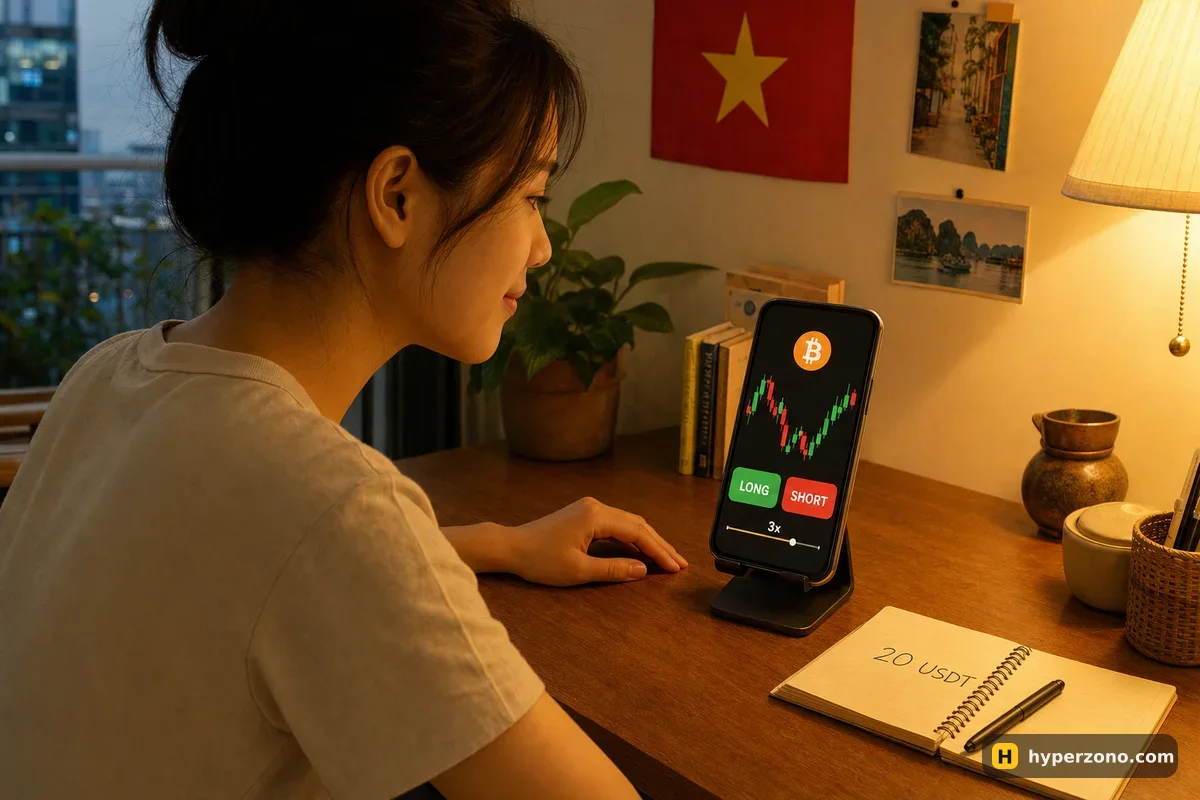
What has to be in place before the first tap
Three things have to be ready: the wallet itself, backed up; some USDT sitting in it; and a country where the service is allowed. The wallet is keyless, so there is no 12-word phrase anywhere — the backup is biometric Quick Backup, a copy to iCloud or Google Drive protected by a recovery password, or a QR code. Until that backup is done, the perpetuals section simply will not let you trade, and the USDT has to be in the wallet balance itself, not on your ordinary exchange account. If you have not set any of this up yet, start with creating and funding the wallet and come back here.
Now the country part. Aster's terms prohibit use by residents of and people located in Russia, Ukraine, the United States, Canada, the United Kingdom, China and other places. If that includes you, this route is closed, and the normal path is to open a Binance Futures account if futures are offered where you live. Never try to get around a block.
One more thing worth knowing before you start, in plain words. These trades live on a blockchain called BNB Smart Chain, so moving money in and out and approving actions are transactions you sign yourself, and there can be a small network fee each time. Binance is not the other side of your trade here — Aster is, which is why the screens and the support channel are different from the usual futures terminal.
Finding the perpetuals section in the wallet
Open the Binance app and switch from the exchange side to the wallet side — it sits as its own area in the app, next to your usual spot and futures accounts. Inside the wallet, look for the trading area with perpetual contracts; it is listed together with swaps and the wallet's other features, and tapping it opens a familiar chart with a pair name at the top.
If you cannot find it at all, two things are usually behind that. Perpetuals appeared in the web version of the wallet in January 2026 and in the app in April 2026, so an old app version will not show them — update first. And if the section opens but every button is inactive, the backup step is almost always the reason: finish Quick Backup, the cloud backup with a recovery password, or the QR code backup, and the trading screens come alive.
Moving your margin to the trading screen
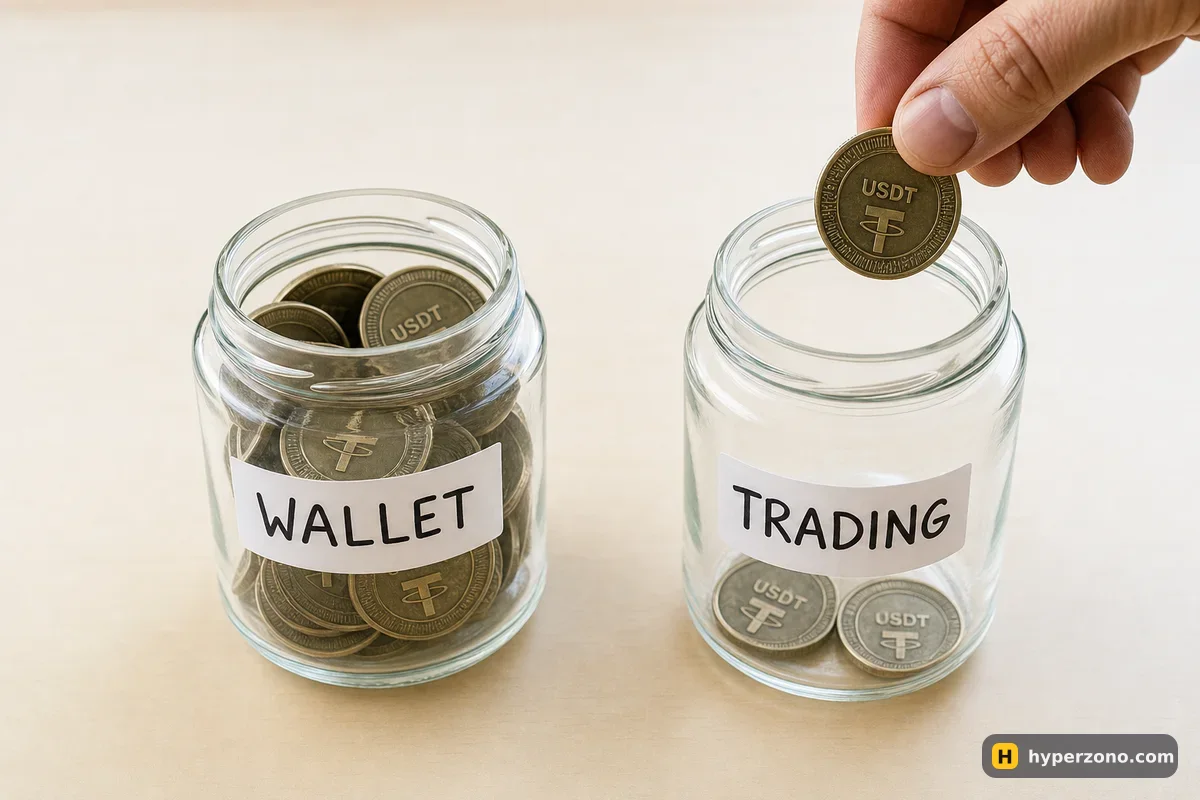
Here is the part that feels different from a normal exchange. On an exchange you transfer money between your own wallets inside one account. Here, the money you trade with has to be sent to the trading side on the blockchain, and that is a real transaction you confirm yourself. Your wallet balance and your trading balance are two separate pockets, and only the second one can open positions.
In the perpetuals screen you will find a deposit or transfer action. You type the amount in USDT, the app shows you what the transaction will cost, and you confirm. The first time, the wallet may also ask for a one-time approval so the trading side can use your USDT — that is a separate confirmation, and it is normal. A few seconds later the amount shows up as your trading balance and the order window wakes up; if it sits as pending for a moment, that is the blockchain working rather than money lost, so give it time before you try again.
Opening the trade, step by step
Pick the pair
Tap the pair name at the top of the screen and choose something liquid and familiar for a first try — BTCUSDT or ETHUSDT. The chart, the current price and the order window all update to that contract.
Choose long or short
Long if you expect the price to rise, short if you expect it to fall. You will see the two choices as the main buttons in the order window; nothing happens yet when you pick one.
Set the leverage
There is a leverage control near the amount field. Move it to the smallest value the app offers for that contract. Leverage does not make the trade better, it only makes both outcomes bigger and brings your liquidation price closer — more on how to pick a number in the guide on leverage for a first trade.
Enter the size
You type either how much USDT of position you want or how much of the coin. The screen then shows how much margin that takes out of your trading balance. If the order comes back rejected, it is usually one of two things: the size is below the contract's minimum order size, or your trading balance does not cover the margin plus the fee. Check both numbers in the app and adjust.
Read the three numbers before you confirm
Margin required, estimated liquidation price, and the fee. The liquidation price is the price at which the trade gets closed for you because your margin has run out — if that number sits close to the current price, your size or leverage is too big. On Aster the crypto taker fee is 0.04% and the maker fee is 0%, so a 60 USDT position costs about 0.024 USDT to enter as a market order — roughly two cents. Here is how to read your liquidation price before you commit.
Place the order
A market order fills at whatever price is there right now; a limit order waits for your price and may never fill. For a first trade, market is simpler, because you see the result immediately.
Confirm in the wallet
The wallet asks you to approve the action. Once you confirm, the position appears in the positions list below the chart with your entry price and a running profit or loss figure.
To keep it concrete, say you move 20 USDT of margin across and open a long on BTCUSDT at 3x. That is a 60 USDT position. If bitcoin moves 2% in your favour you are up about 1.2 USDT before fees; if it moves 2% against you, you are down about the same. Those are illustrative numbers, but the shape never changes — the money result comes from the position size and the price move, not from the leverage number by itself.
Setting a stop-loss and take-profit
Before you walk away from the screen, give the trade an exit in both directions. A stop-loss closes the position if the price goes the wrong way, so your loss stops at a size you chose in advance instead of a size the market chooses for you. A take-profit does the mirror thing on the good side. In the order window these usually appear as optional price fields you fill in when you open the trade, or as an action on the open position afterwards.
Whether both are available depends on the contract and the app version, so check what the screen actually offers for your pair. If you see nothing of the sort, your fallback is a price alert plus the discipline to close by hand. The mechanics of placing one, and what it does and does not protect you from, are covered in how to set a stop loss.
Look at the confirmation screen, not past it. Moving money in and out of the trading side happens on the blockchain, so there can be a small network fee. The app shows you the cost before you confirm — read that screen the first time so you know what the round trip costs you, instead of finding out afterwards.
Watching the position and closing it
The open position sits under the chart with your entry price, your unrealised profit or loss, the liquidation price, and the price the exchange uses to value your position — you will see it called mark price. It is a fair average price rather than the last trade, and it is the number that decides a liquidation, which is explained in why a contract shows several prices.
Two things change your result while you sleep. The price, obviously. And funding — a small payment between longs and shorts that happens every 8, 4 or 1 hours depending on the contract, so check the interval for the pair you picked. It is tiny on a tiny position, but it is real, and only whoever holds the position at that moment pays or receives it.
Closing is the easy part. Tap the close action on the position, choose market to be done immediately, and confirm in the wallet the same way you confirmed the opening. The position disappears from the list and the result — your margin plus or minus what happened, minus fees — lands back in your trading balance.
Getting your money back into the wallet
Money sitting on the trading side is not in your wallet yet. Use the withdraw action in the perpetuals screen, enter the amount, confirm it and wait while the app shows the status. It is usually quick, but a pending status for a while is normal. After that the USDT shows in your ordinary wallet balance, and from there you can hold it, swap it or send it on — which onward routes are offered depends on the app version, so look at what the wallet shows you rather than assuming.
If something goes wrong with an actual trade, remember who your counterparty is: trade support for this product runs through the Aster Discord, not through Binance customer service. Before you make this your regular way of trading, read what can go wrong on the wallet side in the risks of wallet futures. The short version: you hold the keys, so a lost backup is final.
And if all these extra moving parts feel like more than you want on your first day, there is no shame in starting on the plain exchange side instead, where you can also try the futures screens on Binance with a small amount or in demo mode where it is offered. The trading skills transfer completely — long, short, size, stop.
Do I need a Binance account to trade futures in Binance Wallet?
Yes. The wallet is created inside the Binance app and only a verified Binance user can make one. It is still self-custodial — the keys are yours and there is no seed phrase — but the door to it goes through your Binance account.
Is this the same as Binance Futures?
No. The perpetuals in the wallet are executed by Aster on BNB Smart Chain, and Binance is not the counterparty. Fees, the contract list and the support channel are all different, so treat it as a separate product.
How much money do I need to open one trade?
Less than you might think, but there are two floors: the contract's minimum order size, and whatever it costs to move money to the trading side and back. Check the minimum for your pair in the app, and treat anything under a few tens of USDT as practice rather than a serious position, because fixed costs weigh more on tiny amounts.
Which network do I use to fund it?
BNB Smart Chain only. If you send USDT on another network it will not show up for trading, so pick BNB Smart Chain when you transfer in, and read the cost shown on the confirmation screen before you approve.
Can I trade this from my country?
Aster's terms prohibit residents of and people located in Russia, Ukraine, the United States, Canada, the United Kingdom, China and other places from using the service. Check what the app tells you during the process, and if the route is closed for you, use a venue that is actually offered where you live.
What happens if I lose my phone with an open position?
Your position keeps running regardless of your phone, which is exactly why a stop-loss matters here. Getting back in depends entirely on your backup: without the recovery password or the backup you set, Binance cannot restore a keyless wallet for you.