Contents
What the two orders do while you are awayFilling in both before you open the tradeAdding a stop and a target to a trade that is already openOne fills, the other disappears: the OCO partSplitting the exit: partial take profitCheck that both orders really existIf the field is greyed out or the order is rejected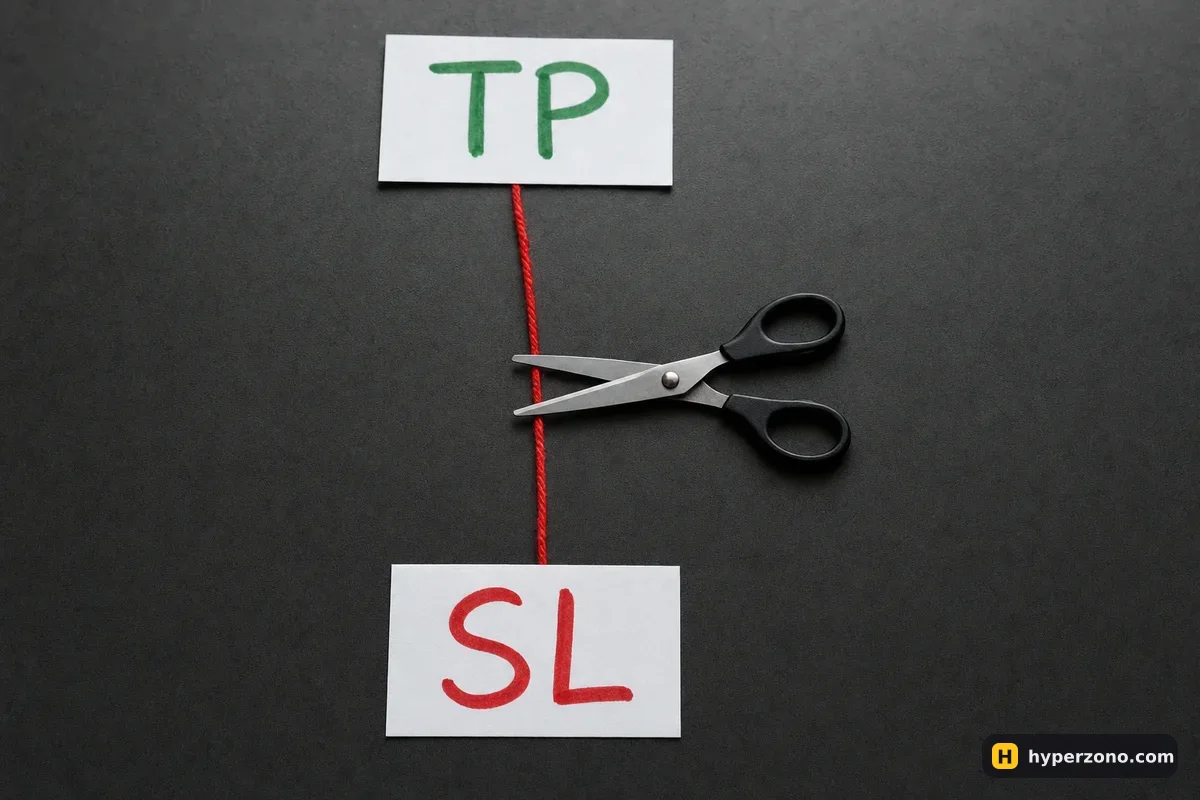
What the two orders do while you are away
Picture the trade these orders are protecting. You go long on bitcoin at 100,000 USDT with a position worth 300 USDT — that is 0.003 BTC, about 30 USDT of your own money at 10x. These are round illustrative numbers, but the idea holds for any size. You think the price is heading up, you also know you might be wrong, and you cannot sit and stare at the chart all day.
So you attach two instructions to that position. If the price falls to 98,000, close me — that costs you 0.003 × 2,000 = 6 USDT. If the price rises to 104,000, close me too — that pays you 0.003 × 4,000 = 12 USDT. Whichever price arrives first ends the trade, and you do not have to be there for either one. Fees come off both numbers, and they are charged when an order actually fills, so the exit that never triggers costs you nothing.
The second benefit is about you rather than the money. When both levels are already in the system, you have made your decision calmly, before the price started moving and before your heart rate went up. People who set exits afterwards tend to move them — the stop gets dragged lower "just this once", the profit gets held for "a bit more". With both exits already in the system, that argument with yourself never starts.
Filling in both before you open the trade
This is the version worth learning first, because the protection exists from the first second of the trade. Exchanges name their buttons differently and redesign their apps, so look for the meaning rather than an exact word: somewhere under the quantity field there is a short line or checkbox for take profit and stop loss, often collapsed until you tap it.
Set up the trade itself first
Choose the contract, pick isolated margin if you want the risk capped at the money assigned to this position, set your leverage, and enter the amount. The exit fields are often greyed out until there is a size in the form.
Open the take profit / stop loss section
Tap the small TP/SL line or checkbox under the amount. Two input boxes appear: one for the price where you take profit, one for the price where you give up on the idea.
Type the stop loss price
For a long it goes below your entry, for a short above it. If the app rejects the number, you have probably put it on the wrong side. Where exactly to place it is its own question — see how a stop loss works and where it belongs.
Type the take profit price
Above entry for a long, below for a short. Most apps show the estimated profit or loss in USDT next to each field as you type, which is the quickest way to spot that you typed one zero too many. Picking a sensible target is covered in take profit explained.
Confirm the order
The position opens and the two exit orders are created and linked to it. From that moment the trade can finish without you touching anything.
If the form also asks which price should watch the trigger — the last traded price or the mark price — note which one is selected. The mark price is a fair price calculated by the exchange, and it is the price liquidations are based on, so a trigger on mark price reacts to the calmer line rather than to a single wild trade. The quickest way to see all of this is to sign up on Bybit and open the order window in demo mode, where the same fields appear with no money at stake.
Adding a stop and a target to a trade that is already open
Maybe you entered in a hurry, or you opened the position from a chart with one tap. Nothing is lost — you can attach both exits to a live position in a few seconds. Go to the positions area, usually a tab under the chart or at the bottom of the screen, and find your position row. On that row there is a TP/SL field or a small edit icon.
Open the position's TP/SL editor
Tap the stop loss / take profit cell on the position row. You will see the same two price boxes, plus your entry price and the current price for reference.
Enter both prices and the size they cover
By default they usually cover the whole position. Some apps let you set a quantity for each exit — leave it at the full size unless you are deliberately splitting the exit.
Confirm and look at the orders tab
Switch to the open or conditional orders tab. Two new lines should appear, both marked as closing or reduce-only orders for your contract.
You can edit either price later while the position is open — drag the line on the chart or retype the number. Moving a take profit further away is normal position management. Moving a stop further away is the habit that empties accounts, so if you change it, change it in the direction that locks in more safety, not less.

One fills, the other disappears: the OCO part
A stop and a target set together, one below the price and one above it, is what traders call a bracket, and the rule that keeps it tidy is called OCO — one cancels the other. Your two orders point in opposite directions, and only one of them can ever be right. When the stop triggers, your position is closed, so the take profit has nothing left to close and the exchange removes it. When the take profit triggers first, the stop is removed the same way.
This linking happens automatically when the two orders are attached to the position through the TP/SL fields. It is not automatic if you build your exits by hand as two separate conditional orders somewhere else in the app. In that case, after one of them fills, the other can still be sitting there — and if it is not marked as a closing order, it can open a brand new position in the opposite direction while you are asleep. Look for a reduce-only or close-on-trigger setting and keep it on.
A stop loss is an instruction to close, not a promise of a price. The price you type is the trigger. When it is reached the exchange sends your closing order to the market, and in a fast move it can fill a little worse than the trigger. That gap is usually small, but on small coins that few people trade, and during big news, it can be bigger. So keep the position small enough that even a worse-than-planned exit still leaves you fine. The details are in does a stop loss guarantee your loss.
Splitting the exit: partial take profit
You do not have to exit in one piece. A common and very practical setup is to take part of the profit early, then let the rest run toward a further target, with the stop still covering whatever is left open. It turns one all-or-nothing decision into two calmer ones.
| Order | Size | Trigger price | If it fills |
|---|---|---|---|
| Take profit 1 | 0.002 BTC | 102,000 | +4 USDT, one third of the position still open |
| Take profit 2 | 0.001 BTC | 104,000 | +4 USDT, position fully closed |
| Stop loss | whatever is still open | 98,000 | −6 USDT if nothing was taken yet, −2 USDT if only 0.001 BTC remains |
Notice what the split costs and what it buys. Taking everything at 104,000 would have paid 12 USDT; the split pays 8 USDT if both targets are hit, but it pays you something in a market that stalls at 102,000 and turns around. There is no right answer here — it depends on whether you more often close too early, or sit in a profitable trade until the price comes all the way back to where you entered. Closing part of a position is a skill of its own, covered in can I close only part of a position.
If you want to see how different exit prices translate into real money on your own position size, try the numbers here before you touch the app.
Check that both orders really exist
This is the step beginners skip, and it is the one that actually makes the pair work. After you confirm the trade, go to the open orders or conditional orders tab — the list of instructions the exchange is holding for you — and count the lines. You should see two entries for your contract: one stop, one take profit, both tied to your position and both marked as closing orders.
Three things are worth a second look there. The prices should be the ones you meant, on the correct sides of your entry. The quantities should add up to your position size — if you later added to the position, the attached exits may still cover only the original amount, leaving part of the trade unprotected. And the orders should be reduce-only, so that nothing can accidentally flip you into a position in the other direction. Ten seconds of checking is the difference between a trade that manages itself and a trade you only think is protected.
If the field is greyed out or the order is rejected
The most common reason is simply that there is no size in the form yet, or no open position to attach to — the exit fields wake up once the exchange knows what it is closing. The second most common is a price on the wrong side: a stop above entry on a long, or a take profit below it, will be refused, sometimes with a short message you can easily miss on a phone screen.
- The quantity you entered for an exit is larger than the position — reduce it to the position size or less.
- The app may refuse a trigger that sits almost on top of the current price — move it a little further away, or check the message the app shows.
- You placed two independent conditional orders rather than attached exits, so they are not linked and will not cancel each other.
- Your position changed size after you set the exits, and the orders still cover the old amount.
There is one more thing worth checking even when nothing is rejected: the liquidation price the app shows next to your position. On a long, if that price sits above your stop, the exchange closes the trade before your stop ever fires, and the fix is a smaller position or lower leverage. A stop only does its job when it is the first thing the price would reach.
All of this is easier to take in with the real screen in front of you. Practise setting both exits a few times in demo until it feels automatic, then do the same with a small real position on Bybit futures — and check during sign-up that futures and demo trading are available where you live.
Can I set take profit and stop loss at the same time on crypto futures?
Yes, and it is the normal way to trade. Every major futures app has both fields in the same order form, so you enter the trade and its two exits in one confirmation. You can also attach them to a position you already opened, from the positions tab.
Is a TP/SL order the same as an OCO or bracket order?
In practice, yes — these are different names for the same idea. OCO means one cancels the other: your stop and your target cannot both be right, so when one fills the exchange removes the other. A bracket is the same thing seen on the chart, with your position bracketed by one price above and one below.
Do take profit and stop loss orders cost extra?
Placing them costs nothing. A fee is charged when an order actually executes, calculated on the size of that execution, so you pay for your entry and for the one exit that fills. The order that never triggers simply disappears without a charge.
What happens to my orders if my phone dies or I lose internet?
They stay on the exchange's servers and keep working, because they live there and not in your app. You can close the app, run out of battery or lose signal, and both levels are still being watched. That is the whole point of setting them in advance.
Can I change the take profit or stop loss after the trade is open?
Yes, as many times as you like while the position is open — edit the number in the position row or drag the line on the chart. Just be careful about the direction of the change: moving a target further out is ordinary management, while moving a stop further away is how a small planned loss turns into a big unplanned one.
Should I set both exits on my very first trade?
Yes. It is the cheapest habit to build, and it means your first trade finishes at a price you chose rather than at a price panic chose for you. Set them in the same window as the entry, then check the orders tab to see both lines sitting there.