Contents
What you actually see when you open the appWhere leverage and margin mode hideAdding a stop loss and take profit on a small screenHow not to tap the wrong thingBattery, signal drops and push alertsWhen you are ready for the real one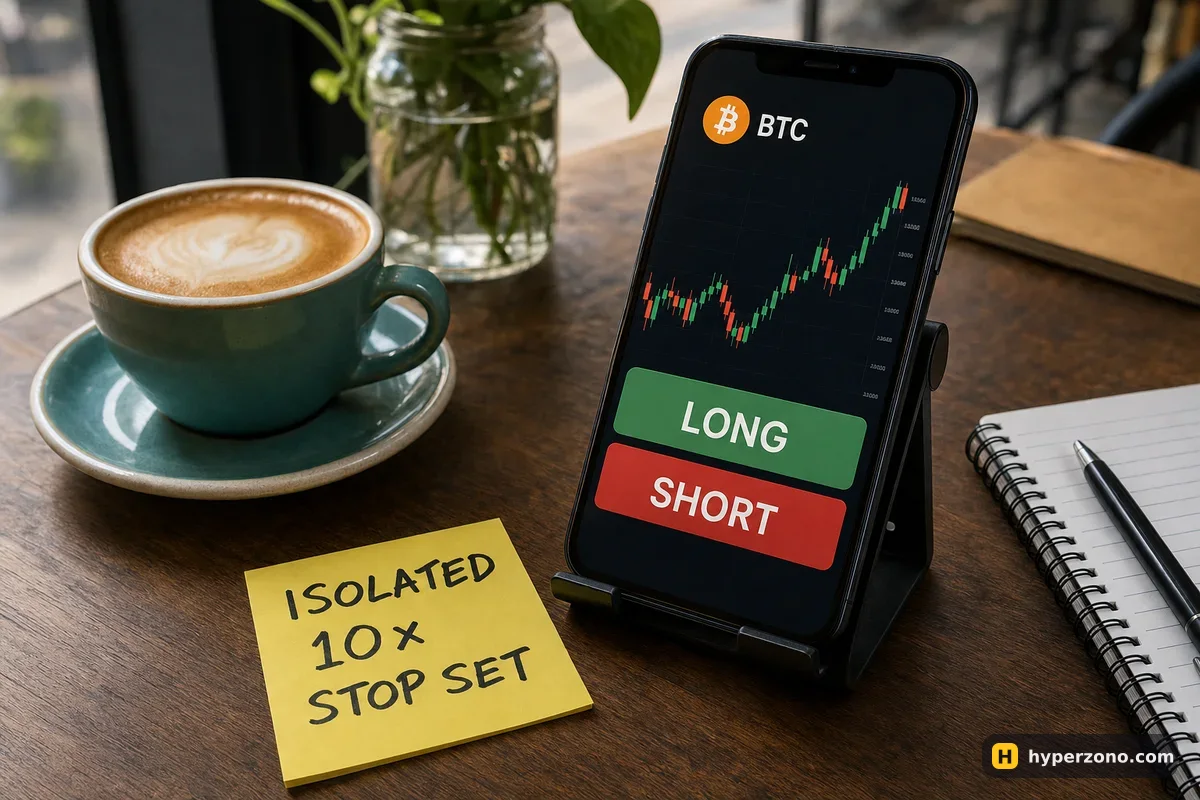
What you actually see when you open the app
On a computer the chart, the order form and your open trades all sit side by side. A phone has no room for that, so the app stacks them. Open the trading screen for a pair like BTCUSDT and you get a candlestick chart across the top, an order panel underneath with the buy and sell buttons, and below that a tab strip with your open positions, your pending orders and your order history.
The chart usually starts small. Tap it and it expands to full screen, often turning sideways, which is where you draw lines and switch the time interval. Tap back and the order panel returns. Most apps also let you flip between a simple view and a full trading view — the simple one hides half the order types, so if a setting you read about is missing, you are probably in the simplified layout.
The tab with your open trades is the part beginners ignore and then panic about. That is where you see your entry price, your current profit or loss, the buttons to close the trade or attach a stop, and the price at which the exchange closes your trade on its own so you do not lose more than the money in it — your liquidation price. Get into the habit of checking that tab right after you open a position, before anything moves; if the word is new to you, what liquidation means explains it in two minutes. Which app to install is a separate question — if you have not chosen yet, start with the comparison of mobile futures apps.
Where leverage and margin mode hide
This is the one thing that catches almost everybody. On mobile, leverage and margin mode are not sliders sitting in front of you — they are a small text label just above or beside the order panel, something like "Cross 10x". It looks like information. It is actually a button. Tap it and a panel slides up where you choose isolated or cross margin and drag the leverage.
Set both before you open the trade, because they apply to the contract, not to one order. Whatever you picked last time is still there when you come back tomorrow. On Binance, for example, a contract you have never traded before starts in cross margin by default, and on a brand-new Binance futures account you cannot go above 20x for the first 30 days anyway. Some apps will not let you change the margin mode at all while you have a position or a pending order on that pair, so close the position and cancel any pending orders on that pair first, then change the setting.
For a first live trade, isolated margin keeps the damage inside the money you put into that one position, and a modest leverage keeps the liquidation price far from the current price. The reasoning behind that choice is spelled out in isolated vs cross margin, and if you want to see the label for yourself you can open a Binance Futures account and tap it before you deposit anything.
Open the pair, not the first thing on screen
Search the contract you want and check the name at the top. BTCUSDT perpetual and a dated BTCUSDT contract look almost identical on a small screen.
Tap the Cross/Isolated and leverage label
Switch to isolated if that is your plan, drag leverage to the number you decided on, confirm. The label above the order panel should now show exactly that.
Type the size instead of dragging it
The percentage slider is quick, but on a narrow screen one millimetre of thumb can double your position. Tap the amount field and type the number.
Check the units
Next to the amount there is a toggle between the coin and USDT. "0.01" in BTC and "0.01" in USDT are wildly different trades.
Attach the stop loss in the same window
Switch on the TP/SL option — that is take profit and stop loss — and type your stop price before you confirm, so the protection starts the same moment the trade does.
Adding a stop loss and take profit on a small screen
There are two moments to do it. The first is inside the order panel, where that small TP/SL switch opens two extra fields: one for the price where you take your profit, one for the price where you cut the loss. Fill them in and both orders are placed together with the entry, which is the safest habit on a phone, because you are doing it calmly instead of while the price is already moving.
The second moment is after the trade is open. Go to the positions tab, tap your position, and you will find the same take profit and stop loss settings there. That panel usually lets you set the stop by price or by the loss amount, and it often shows your estimated result at that level, which is handy when the screen is too small to do mental arithmetic. The full walkthrough is in how to set a stop loss.
One thing worth knowing before you rely on it: the price you type is the trigger, not a promise. When the market jumps, a stop that triggers as a market order gets filled at whatever price is available, which can be worse than your number. That is normal, and it is the honest limit of the tool — a stop keeps a small loss from turning into a disaster, but it does not fix your loss to the exact cent.
Set the stop before you put the phone down. Changing a stop later needs signal, a charged battery and a calm thumb, and those are exactly the things you lose at the worst moment. Placing it in the same window as the entry costs you ten extra seconds while nothing is happening.
How not to tap the wrong thing
Mis-taps on mobile are almost always one of four things: wrong side, wrong size, wrong pair, or an order sent before you were ready. All four are cheap to prevent. In the app settings there is usually a one-tap or quick trading mode that sends the order the moment you touch the button, with no confirmation window. Turn it off. The confirmation popup costs you one second and normally lays out the side, the size and the leverage on one screen — read it, every time.
The second habit is the preview itself. Before you confirm, run the same short check in your head each time. It takes about ten seconds and it is the difference between a trade you planned and a trade that happened to you.
- The pair at the top is the one you meant, and it is the perpetual contract, not a dated one.
- The side is right: green for a long, red for a short — on some apps the buttons swap places between the simple and full layouts.
- The size field is in the unit you think it is in, and the margin shown is money you are willing to lose.
- The leverage and margin mode label matches your plan.
- Your stop price is filled in, and it is on the correct side of your entry.
The other quiet trap is the chart. Zooming, drawing a line and moving a stop by dragging it all happen with the same finger gestures, and on some apps dragging the position line on the chart genuinely moves your stop order. If you are just looking at the chart, look with the trade screen closed, or at least check your positions tab afterwards to confirm nothing changed.
Battery, signal drops and push alerts
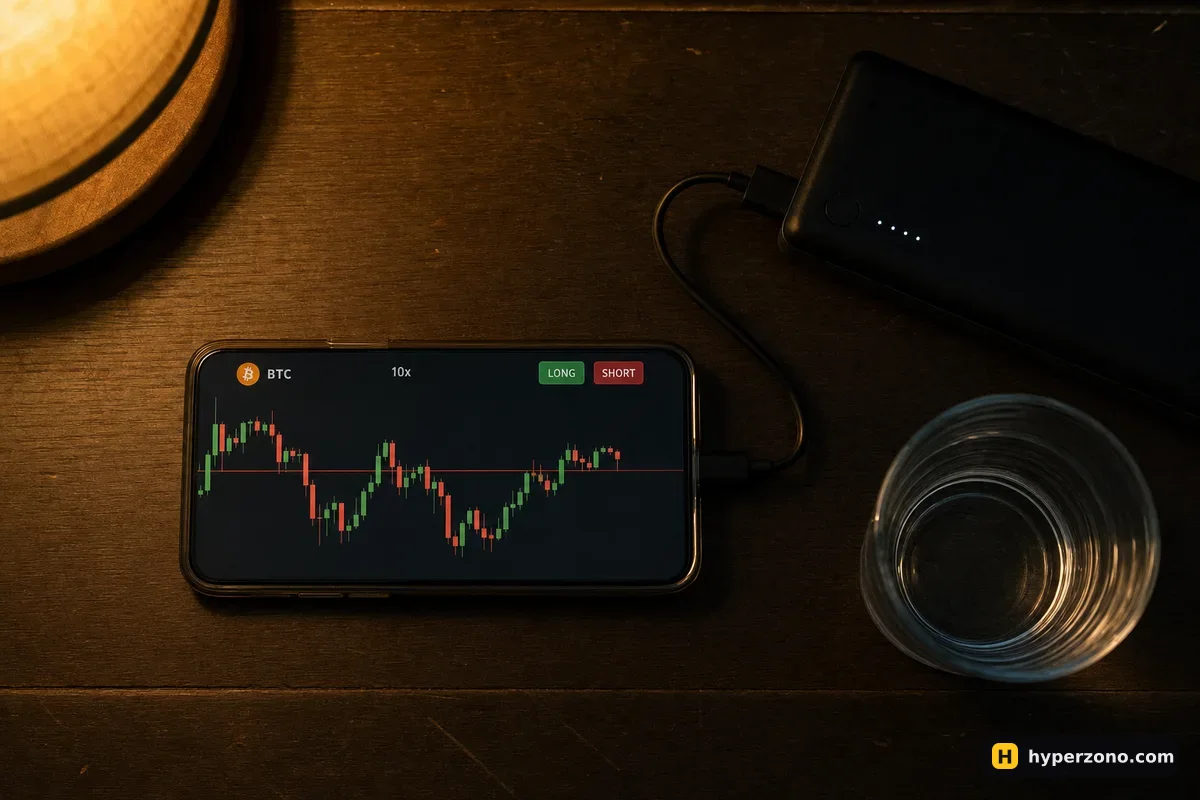
A phone that dies does not close your trade. Once the exchange accepts your orders, the position and the stop loss and take profit attached to it sit on the exchange's servers, not inside the app — a flat battery, an empty data plan or a deleted app changes none of that. What you lose is information and the ability to change your mind, which is why a dead phone in the middle of a volatile hour feels so bad even though nothing technically broke. What happens if your phone dies or your internet drops goes through this case properly.
Two settings make mobile trading much calmer. Look in the app's notification settings for alerts on order fills and on positions at risk, and switch on whatever is offered, so you learn that your stop was hit without having to keep the chart open. Then add a price alert at the level where you would want to do something — above your entry where you might move the stop to break even, or below it where the idea stops making sense. The alert does the watching; you do something else.
On an unstable connection, keep the trade simple. Place the entry together with the stop and the take profit in one go, so that even if the app will not load for ten minutes, the plan is already waiting on the exchange. If you need to close by hand and the app is spinning, try the exchange's mobile site in a browser before you assume everything is broken — it is the same account and the same positions.
If you have never done this on a live screen, practise where a mis-tap costs nothing. Bybit has a demo futures mode where you trade with a practice balance instead of your own money — sign up on Bybit, check during sign-up that futures are offered where you live, and practise the taps there first. There is a step-by-step version in how to open a demo futures account on Bybit.
When you are ready for the real one
The mechanics of a trade are the same on any device: you choose a side, a size and a price where you admit you were wrong. The phone only changes where the buttons live. Once the settings above are configured, your first live trade is five taps — pick the pair, set margin mode and leverage, type the size, fill in the stop, confirm.
Start small enough that a mistake is a lesson rather than a problem — the size of a coffee, not the size of your rent. And before you deposit anything, check inside the app during sign-up that futures are actually offered where you live, because availability differs by country and by exchange.
Can I trade crypto futures only from my phone, without a computer?
Yes. The mobile app gives you the same account, the same contracts and the same order types as the website. Most people who trade a few times a week never open a desktop terminal; a bigger screen mainly helps if you like detailed chart analysis with many drawings.
Why can't I change my leverage in the app?
Usually because you already have an open position or a pending order on that contract — many apps lock the setting until nothing is left on that pair. There can also be an account limit: on Binance, leverage above 20x is not available during the first 30 days of a futures account. Close the position, cancel the pending orders and try again.
Does trading from a phone cost more in fees?
No. The fee depends on the contract and on whether your order takes a price that is already there or waits in the book — not on the device you tap it from. Before you confirm, the app usually shows the estimated fee for that trade — check it there, and see what fees you pay on futures for how it is worked out.
What happens if the app crashes while my trade is open?
Reopen the app, or log in from a mobile browser, and you will find the trade exactly as you left it, together with any stop loss and take profit you attached. The only real cost is the minutes when you cannot react — which is the argument for attaching a stop before you need it.
How do I avoid opening a short when I meant a long?
Keep the order confirmation window switched on and read the side in it before you tap again. Turning off one-tap trading removes almost all of these mistakes, and typing the size instead of dragging the slider removes most of the rest.
Can I practise on my phone before using real money?
Several exchanges offer a demo futures mode; check in your app whether it is there, since it is not available everywhere. Where it exists, it is the best place to learn where the settings hide. Just remember that demo does not simulate the feeling of real money, so keep your first live trade very small.