Contents
What you are actually telling the exchangeSetting the stop before you enter the tradeHow to add a stop loss to a position you already openedOn the phone: where the TP/SL field hidesLast price, mark price or index: which trigger to chooseHow to check your stop actually landedIf it did not work: the usual reasons
What you are actually telling the exchange
A stop loss is a sleeping order. You give the exchange a price, and while the market is above it (for a long trade) nothing happens at all. The moment the price touches that level, the order wakes up and closes your position, whether you are watching the screen, asleep or on a bus with no signal.
Here is what it looks like with money. Say your position is worth 100 USDT — that is the size of the trade, not your deposit — and bitcoin is at 80,000. You put your stop at 78,000, which is 2.5% lower. If the price gets there, the exchange closes you and you are out about 2.5 USDT plus a small fee — a scratch, not a disaster. These numbers are an example to show the arithmetic, not a real price.
Where to put that level is a separate question with its own answer on the page about what a stop loss is and why you need one. This page is about the buttons: getting the thing placed, and making sure it really is there.
Setting the stop before you enter the trade
This is the cleanest way, because the stop exists from the first second of the trade. Every big exchange builds it the same way: the order form has a line for take profit and stop loss, usually a small switch or checkbox under the amount field, and it is often folded away until you tap it. Names differ slightly between exchanges and app versions, so look for the meaning rather than an exact word.
Open the contract and the order form
Pick the pair you want to trade, for example BTCUSDT perpetual, and you will see the buy and sell panel with fields for price and amount.
Set leverage and amount first
The stop loss calculation shown on screen depends on your position size, so choose those before you touch the stop field.
Tap the take profit / stop loss line
It sits under the amount, usually as a small toggle. Tapping it opens two input boxes: one for the profit side, one for the loss side.
Type a price, not a guess
Enter the price level where your idea is wrong. Many order forms also let you switch the box to a percentage or to a loss in USDT — use whichever you understand, but read the little preview text that says how much you stand to lose.
Choose the trigger price source
There is usually a small selector next to the field with options like last price or mark price. More on that below.
Place the order
Confirm, and the stop is attached to the position as soon as it opens. You can fill in only the stop box if you do not want a profit target yet.
One detail trips people up here: the stop field will refuse a price on the wrong side. For a long trade the stop must be below the current price, for a short trade above it. If the button stays grey or you get an error, that is usually why.
How to add a stop loss to a position you already opened
Forgot to set it, or entered in a hurry? You can add a stop to an open trade at any time, and it costs nothing to place. Go to the positions tab — the strip at the bottom of the trading screen that shows your open trade with its size, entry price and current profit or loss.
Find your position row
It shows the contract, the size and your unrealised result. On a phone you may need to swipe up on that bottom panel to expand it.
Tap the take profit / stop loss cell on that row
On most exchanges this cell shows two dashes when nothing is set. Tapping it opens a small window with the stop loss input.
Enter the price and check the quantity
By default the stop usually covers the whole position. If there is a quantity field, make sure it matches your full size, otherwise you will be protected on only part of the trade.
Confirm and look at the position row again
The dashes should be replaced by your stop price. A horizontal line should also appear on the chart at that level.
You can edit or cancel that stop later the same way. Moving a stop closer to lock in a better worst case is fine; dragging it further away because the price is coming toward it is how small losses become large ones, and it is one of the main reasons beginners lose money.
On the phone: where the TP/SL field hides
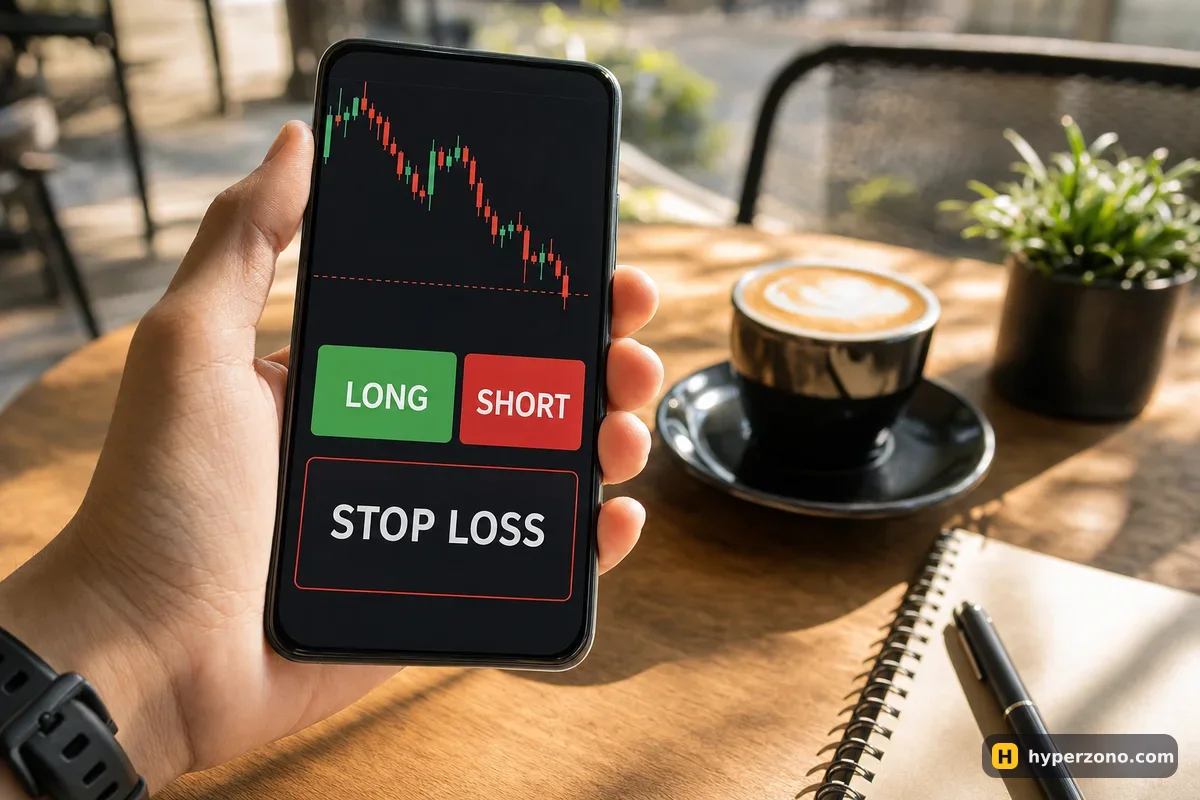
Mobile screens are narrow, so exchanges hide the stop loss behind one extra tap. In the app, after you choose the amount, scroll down inside the order panel: there is a small line with a checkbox or a toggle for take profit and stop loss. Tap it and the two input boxes slide into view. If you do not see them at all, you may be on the spot screen rather than the futures one — check the tab at the top of the app.
There is a second route on the phone that many people prefer: open the trade first with a market order, then add the stop from the positions panel at the bottom. It is two actions instead of one, but the fields are bigger and harder to mistype. Whichever route you take, the stop lives on the exchange's servers, not in your phone, so it keeps working if your battery dies or you lose signal.
Last price, mark price or index: which trigger to choose
Next to the stop field there is a small selector for which price pulls the trigger. It matters more than it looks, because a futures contract shows several different prices at the same time and they can differ by a few dollars during a fast move.
| Trigger source | What it follows | What that means for you |
|---|---|---|
| Last price | The price of the most recent trade on this contract | Easiest to read on the chart, but one short price spike on this single exchange can touch your stop |
| Mark price | A fair price built from a wider reference price, smoothed out | The same price the exchange uses for liquidation, so your stop and your liquidation level speak the same language |
| Index price | A reference price taken from the market outside this one contract | Rarely needed for a simple protective stop |
For a first stop loss, mark price is the sensible default. If the trade ever goes really wrong, the exchange closes it on mark price. Set your stop on the same price and you avoid getting closed by a one-second spike that the fair price never saw. If the selector is missing in your app version, the exchange has simply chosen one for you — check which one in the contract details.
The trigger price is not the price you get. A stop tells the exchange when to act, not what price to accept. In a fast drop the closing trade can fill a little below your level, so the real loss may be slightly bigger than planned. The gap is usually small on bitcoin and bigger on small coins where few people are trading — more on that in does a stop loss guarantee my loss.
How to check your stop actually landed
Never assume. After you confirm, do a ten-second check in two places. First, the position row: the stop price should be printed there instead of dashes. Second, the orders area of the screen, where there are usually separate tabs for open orders and for conditional or trigger orders. A stop loss normally sits in the conditional tab, not with ordinary limit orders, which is why people panic and think it vanished.
On most charts you will also see a coloured horizontal line at your stop level, often marked SL. If the line is there, the price is right and the tab shows the order, you are done. The easiest way to get comfortable with all of this is to place a small position and a stop on it — on Bybit you can try it in demo mode first, where the trading screen works the same way, only the money is not real; check during sign-up that demo and futures are available where you live, and that your coin is in the demo list.
If it did not work: the usual reasons
Most failures are small and fixable. The confirm button staying grey almost always means the stop price is on the wrong side of the entry, or the amount field is empty. An error about quantity usually means the stop covers more than your open size — reduce it to match.
- The stop is further away than the price where the exchange would close you itself. Then liquidation comes first and your stop never fires — look at the liquidation price shown on the position, and use less leverage or a closer stop.
- You closed the trade by hand and a lone conditional order stayed behind. Look for the box usually called reduce-only — it means the order can only close a trade, never open one. Without it, a leftover stop can later open a fresh trade in the opposite direction, so cancel leftovers in the conditional orders tab.
- The stop triggered but filled at a worse price. Normal in a fast market with a stop-market order; if you want to understand the trade-off, see stop-market and stop-limit orders.
- The stop triggered on a spike you never saw on your chart. Usually a last-price trigger on a coin with little trading — switch to mark price and give the level a little more room.
- Nothing is in the conditional tab at all. The order was never placed; redo it from the position row and watch for the confirmation message.
One more thing to keep in mind: closing a trade through a stop is an ordinary execution, so you pay the usual trading fee on it, charged on the size of the position. Placing the stop is free; only the actual close costs anything.
How do I place a stop loss on Bybit?
Two ways, same as on other exchanges. Either open the take profit / stop loss line inside the order form before you enter, or open your trade first and then tap the stop loss cell on the position row at the bottom of the screen. After confirming, check that the price shows on the position and that the order appears in the conditional orders tab. If you want to practise without risk, sign up on Bybit and use demo mode, where the trading screen works the same way with practice money — check during sign-up that demo and futures are available where you live, and that your coin is in the demo list.
Can I add a stop loss to a position that is already open?
Yes, at any moment while the trade is running, and placing it costs nothing. Go to the positions tab, tap the take profit and stop loss cell on your position row, type the price and confirm. The only limit is logic: for a long the stop must be below the current price, for a short above it.
Does a stop loss work if I close the app or my phone dies?
Yes. The order sits on the exchange's servers, not on your device, so it watches the market whether your phone is on or off. That is the whole point of setting it before you go to sleep instead of planning to react manually.
What percentage should I set my stop loss at?
There is no magic number, and a stop that is too tight gets hit by ordinary market noise. Work backwards instead: decide how many dollars you are willing to lose on this trade, pick a price level where your idea is clearly wrong, and choose a position size small enough that the two match. With 100 USDT on your account that often means risking two or three dollars per trade, not thirty.
Why did my stop loss close me at a worse price than I set?
Because the price you enter is a trigger, not a promise. When the market moves fast through your level, the closing order fills at the next available price, which can be a little lower on a long. On bitcoin the difference is usually tiny; on small coins with few traders it can be noticeable.
Can I move or cancel a stop loss after setting it?
Yes — tap the same field on the position row to edit or remove it. Moving it closer to your entry to protect profit is a normal part of managing a trade. Moving it further away because the price is approaching is the one edit that regularly turns a planned small loss into a big one.