Contents
First check that Bybit works where you liveHow do I get USDT into the right balance?Opening a perpetual contract and reading the screenMargin mode, leverage and order typeThe order form, field by fieldA small trade from start to finishManaging the position and closing itWhere to find what you really earnedWhen the app says no: common snags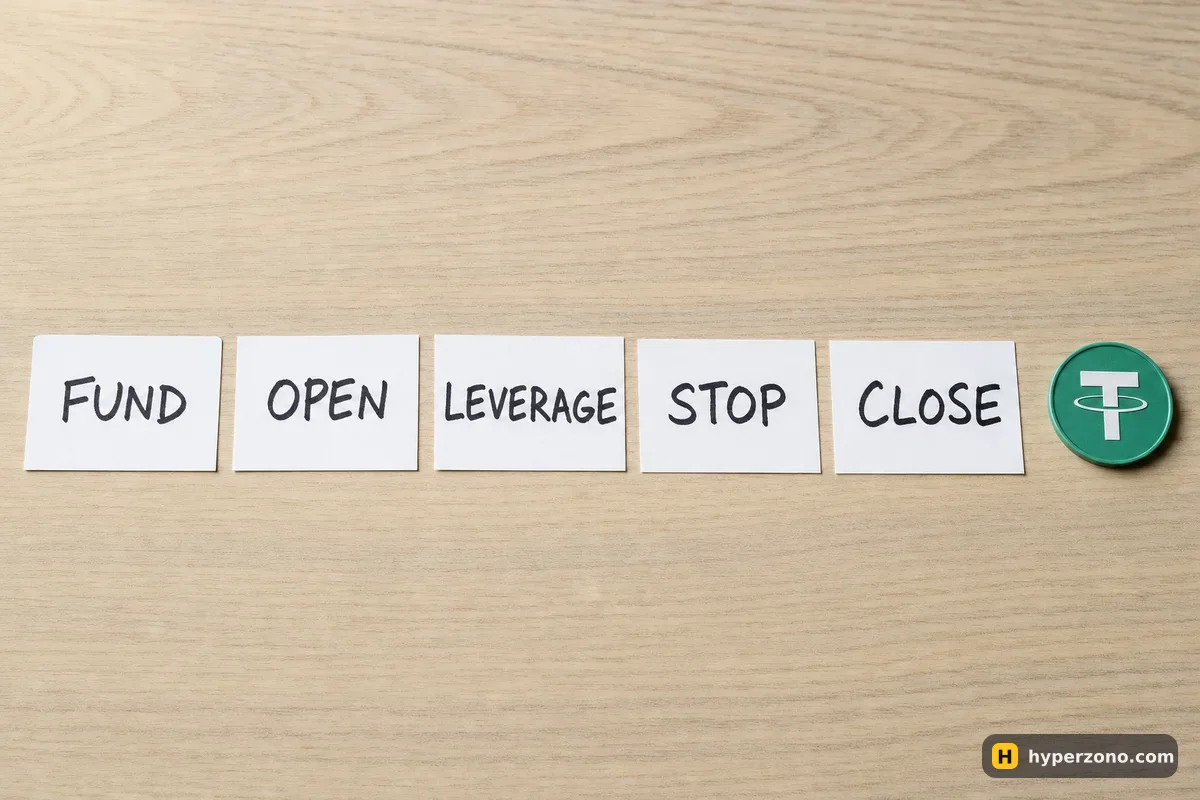
First check that Bybit works where you live
Bybit names a list of places it does not serve — the US, mainland China, Hong Kong, Singapore, Canada and a dozen more — and says plainly that the list can grow. If you don't see your country there, you still check the real way: start the sign-up and look at which products your menu shows. The names on the list, and the same check for other venues, are collected in which exchanges work in my country.
There is one more thing to know. If you live in the EEA, you are signed up through a separate European Bybit company on bybit.eu, with its own account and its own product list, so what you see may differ from screenshots you find online. The honest way to find out is to create an account on Bybit with your own documents and look at your menu — and never try to get around a block, because an account opened in the wrong place can be frozen with your money inside.
How do I get USDT into the right balance?
Futures on Bybit are priced and settled in USDT, so your first job is simple: put USDT in your trading balance — the one futures actually uses. You can buy USDT inside the app with a card or a bank transfer, use the P2P section where people trade with each other, or send USDT you already own from another exchange or wallet. If you are sending from outside, pick the same network on both sides, because the network you choose when withdrawing must match the one shown on the deposit address, or the transfer can be lost.
After the money lands, look at where it landed. In the app your money can sit in more than one account; futures orders only see the trading one, and a deposit or a card purchase often arrives somewhere else. In the part of the app that lists your assets, each balance has a transfer control beside it, and moving USDT between your own accounts happens instantly. If the app says you have insufficient margin while you can clearly see your money, almost always it is just sitting in the wrong place.
Opening a perpetual contract and reading the screen
From the main menu, find the trading section and choose a USDT perpetual contract — BTCUSDT is the usual first one. A perpetual contract has no expiry date, so you can hold it as long as your margin supports it; in exchange, at fixed settlement times, longs and shorts pay each other a small amount called funding. If you want a contract with a fixed end date instead, that is a different product in the same list.
The screen looks busy, but you only need four parts of it. The chart in the middle shows the price. The list of numbers beside it is the order book: sellers above, buyers below, with the last traded price in between. Below or beside the chart is the order form, where you set the size and send the trade. And at the bottom there is a panel with tabs for your open positions, your working orders and your history — that panel is where you will spend most of your time once the trade is live.
Margin mode, leverage and order type
Above the order form you will find a small control showing the margin mode and a number with an x next to it. Tap the margin mode first. Isolated margin ties the trade to the amount you assign to it, so that amount is what you are risking on it; cross margin lets the position pull from your whole free balance, which keeps it alive longer but puts more of your money at stake. For a first trade isolated is the calmer choice, and the difference is explained properly in cross margin vs isolated margin.
Then tap the leverage number. Leverage decides how much margin is frozen for a given trade size, and it moves your liquidation price closer or further away. It does not make you richer on its own: at the same trade size, 2x and 20x earn and lose the same number of dollars, they just lock up different amounts of your balance and leave you different amounts of room before the exchange closes the trade. Pick something low while you are learning, and read what leverage a beginner should use before you drag the slider up.
Last, choose the order type at the top of the form. A market order goes straight into the book and fills right away at whatever price is there. A limit order lets you name your price and waits — it may fill later, or never. Market is simpler for a first trade, and you can experiment with limit orders once the rest of the screen feels familiar.
The order form, field by field
The quantity field has a small toggle that switches between the coin and USDT. In coin mode you type how much bitcoin you want, for example 0.0015 BTC. In USDT mode you type the value of the trade, for example 150 USDT, and the app works out the coin amount for you. These are the same thing expressed differently, and under the field the app shows the margin that will be frozen and the largest size your balance allows at the leverage you picked.
Under the size there is a checkbox for attaching a take profit and a stop loss, usually shown as TP/SL. Tick it and two extra fields appear: the price where the trade closes in profit, and the price where it closes to cut the loss. Fill the stop loss in before you send the order and it goes live together with the position, which means you are protected even if you put the phone down. A stop is not a promise of an exact exit price — in a fast move it can fill worse than the level you typed — but it still turns an open-ended loss into a planned one, as how to set a stop loss shows in detail.
Two checkboxes sit near the bottom of the form and confuse beginners more than anything else on this screen. Reduce-only means the order can only shrink or close a position you already have, never open a new one — useful when you are exiting, pointless when you are opening. The other box, post-only, only matters later when you start caring about fees; leave it alone for now.
Pick the contract
Find the trading section, choose a USDT perpetual such as BTCUSDT. The chart, order book and order form appear.
Set margin mode and leverage
Tap the control above the form, choose isolated, set a modest leverage. Confirm.
Choose market or limit
Market for an immediate fill. Limit if you want to name your own price and wait.
Type the size
Switch the field to USDT if that is easier, enter the value of the trade, and check the margin figure shown underneath.
Tick the take profit and stop loss box
Enter your stop-loss price, and a take-profit price if you have one in mind. The app shows the estimated result at each level.
Press the buy/long or sell/short button
Review the confirmation window — size, leverage, margin, stop — then confirm.
Check the position panel
Your position appears at the bottom with entry price, liquidation price and a running profit figure. Confirm the stop is attached.
Attach the stop in the same order. If you open first and plan to add protection afterwards, there is always a gap where a sudden move can hurt you — and that is exactly when people freeze. Ticking the stop-loss box takes three extra seconds and removes that gap entirely.
A small trade from start to finish
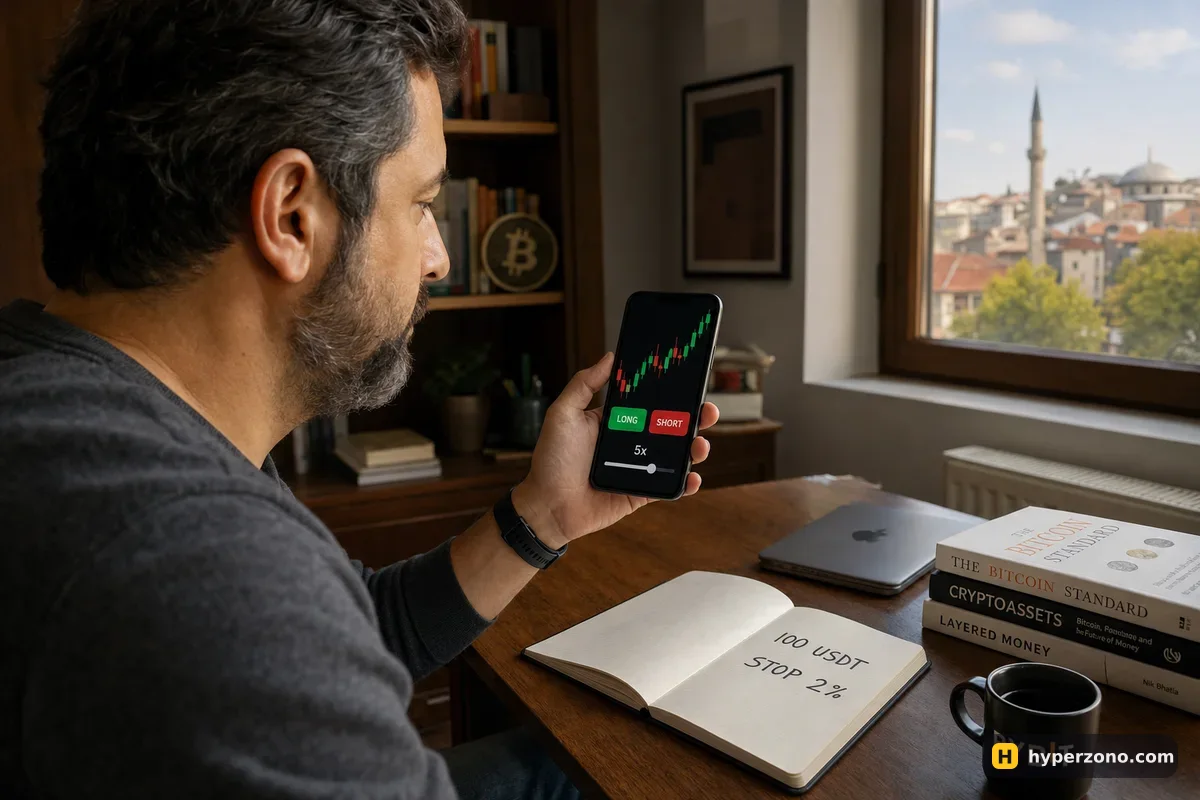
Here is an illustrative example with round numbers. You have 100 USDT in your trading balance, you set isolated margin and 5x, and you open a long worth 150 USDT with bitcoin at 100,000. That is 0.0015 BTC and 30 USDT of margin, so most of your money stays untouched. Price moves up 2% to 102,000, you close, and your result is 0.0015 × 2,000 = 3 USDT, minus the fee charged on entry and on exit.
The same move the other way costs you 3 USDT, and your stop-loss is what decides whether it stops there. Had you set a stop at 99,000, the planned loss would be about 1.5 USDT plus fees, no matter how far bitcoin kept falling afterwards. Small numbers, and that is the point: your first trades are for learning, not for income. Try the numbers for your own size below, then place exactly this trade once you sign up on Bybit.
Managing the position and closing it
While the trade is open, the position panel shows your entry price, the size, the margin tied up, the liquidation price and an unrealised profit or loss that moves with the market. The liquidation price is the level where the exchange closes the trade for you, because your margin has run out. It usually lands near that number, but in a very fast move it can be worse — which is why a stop-loss above it is the thing that really protects you. It is also calculated on the mark price, a fair price derived from an index rather than the last trade on screen, so the chart can briefly touch that level without the position being closed.
You can edit the take profit and stop loss at any time by tapping them in the position row. To exit by hand, use the close control on the position: a market close takes the price available right now, a limit close waits for your price, and typing a smaller quantity closes only part of the trade.
The stop and take profit you attached in the order form belong to the position, so they disappear when it closes. If you placed a separate order by hand — a conditional order you set up yourself in the order form — check the orders tab after closing and cancel anything still waiting there, so it does not open a new trade. That is also what the reduce-only box is for: an order marked reduce-only can only close a position, never open one.
Where to find what you really earned
The number floating on the screen while a trade is open is only an estimate. The real one appears after you close, in the history part of the trading screen: there you will find your filled orders and a closed profit-and-loss record showing entry price, exit price, fees and the final figure for each position. Funding payments on perpetual contracts are listed separately, usually in your transaction or funding history, because they are paid between traders at fixed settlement times rather than taken by the exchange.
Check those records after your first few trades even when the result is tiny. Seeing that a 10 USDT win shrinks a little once the entry and exit fees come out is the fastest way to understand why size and frequency matter — the rates that apply to you are shown in the app, and the full arithmetic is in how to calculate your real profit.
When the app says no: common snags
- "Insufficient margin" with money visible — the USDT is in another account inside the app; move it to your trading balance.
- The order is rejected as too small — every contract has a minimum order size in its specification; open the contract details in the app and check it.
- You cannot change the leverage — reduce or close the position first, then adjust, then reopen.
- Your limit order never fills — you named a price the market never reached, or post-only cancelled it; check the orders tab and the cancellation reason.
- Derivatives are missing from your menu — your country or your account entity may not offer them, and no workaround is worth your deposit.
If you want to rehearse all of this without money on the line, Bybit has a demo trading mode with simulated balances, and how to open a Bybit demo account walks through it. Trading on other exchanges follows the same logic with different button names, so once this screen makes sense, the next one will take you ten minutes instead of an afternoon.
Is Bybit available in my country?
Bybit names the places it does not serve — the US, mainland China, Hong Kong, Singapore, Canada and others — and says the list can change. Even where the exchange works, derivatives may be limited or handled by a separate local entity, as in the EEA. The only reliable check is to start the sign-up with your own documents and see which products the app offers you.
What is the minimum amount to trade futures on Bybit?
It depends on the contract: each one has its own minimum order size, and your leverage decides how much margin that size ties up. Open the contract details in the app and look at the minimum quantity before you plan your deposit. Small accounts are possible, but fees and funding weigh more heavily on tiny trades.
Do I need to own bitcoin to trade bitcoin futures on Bybit?
No. A USDT perpetual is settled in USDT, so you only need USDT in your trading balance. You are trading the price movement, not the coin itself, which is why you can also go short and make money when the price falls.
Can I close only part of my position?
Yes. Use the close control on the position row and type a smaller quantity than the full size; the rest stays open with the same entry price. People often do this to take some profit off and let the remainder run with the stop moved up.
Why does my position show a different price from the chart?
Your profit and your liquidation are calculated on the mark price, a fair price built from an index of several markets, while the chart usually shows the last traded price. They are normally very close, and the gap matters mostly during sharp moves.
Can I practise on Bybit before using real money?
Yes, Bybit has a demo trading mode where you place orders with simulated balances and see the same screens. It is excellent for learning where the buttons are, though it cannot copy the pressure of real money or the exact fills you would get live.
How do I turn my futures profit back into cash?
Close the position, then move the USDT out of your trading balance to the account used for withdrawals or sales, and either sell it for your local currency or send it out. The transfer inside your account is instant; the withdrawal depends on the network and method you choose.