Contents
What happens when you press Buy on an open shortClosing, reducing and flipping are three different resultsHow to check which mode you are in before your first orderPractise the mix-up where it costs nothingWhat happens when you press Buy on an open short
Say you are short 0.01 BTC from 83,500 and the price is now 82,500 — illustrative numbers. The price moved 1,000 USDT per bitcoin your way, so on 0.01 BTC you are about 10 USDT ahead. You want that 10 USDT, so you reach for Buy, because selling is what opened the trade and buying is what ends it. In one-way mode that instinct is correct: the exchange keeps only one position per contract, so your buy is matched against the short and the position disappears — you hold nothing on that contract any more. If you have never opened a short in the first place, the short side is explained on the page about opening a short on bitcoin.
Now change one setting. In hedge mode the long side and the short side of the same contract are two separate positions, so a buy that the exchange treats as an opening order does not touch your short at all. You walk away with a 0.01 BTC short and a 0.01 BTC long at the same time, paying the entry fee twice, holding margin for both and paying or receiving funding on both. OKX puts it simply: in hedge mode a close order can only reduce a position, while an opening order can only add one — two different jobs, two different buttons in the order window.
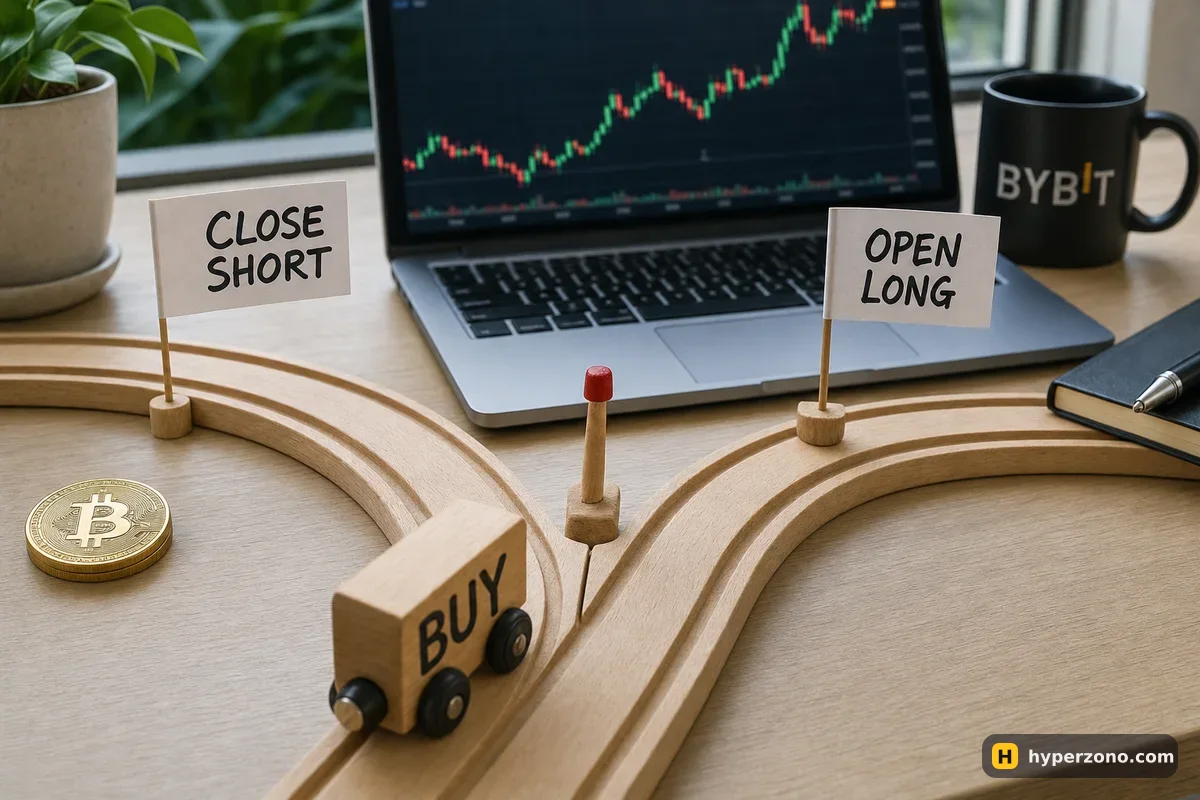
Here is the same thing as a picture, for a 0.01 BTC short. The right-hand column shows hedge mode only when your buy goes in as an opening order; if you use the close action in hedge mode instead, you get exactly the one-way results in the middle column. The last row is the special case — a reduce-only order is a close order in both modes, so both columns read the same.
| Your buy order | One-way mode | Hedge mode: buy as an opening order |
|---|---|---|
| Buy 0.01 BTC | Short closed | 0.01 short + 0.01 long |
| Buy 0.005 BTC | Short shrinks to 0.005 | 0.01 short + 0.005 long |
| Buy 0.02 BTC | Short closed, extra can open a long | 0.01 short + 0.02 long |
| Buy 0.02 BTC, reduce-only (a close order in both modes) | Trimmed to 0.01, short closed | Trimmed to 0.01, short closed |
Closing, reducing and flipping are three different results
The word "opposite" hides three outcomes that feel very different in your balance. Buying less than your short reduces it and banks part of the profit, while the rest of the trade stays exposed to the price. Buying exactly your short size closes it and your result stops moving. Buying more than your short size is the one that surprises people: on OKX an ordinary order that is not marked reduce-only can end up opening a position in the opposite direction, so the leftover size turns into a long — in a falling market, the exact trade you did not want.
This is what the reduce-only setting is for. A reduce-only order is meant only to shrink your current position, never to grow it, so if it would open or increase a position the exchange simply fails it. A reduce-only buy with no position at all fails. A reduce-only buy in the same direction as a position you already hold fails. And an oversized reduce-only order is not rejected — its amount is changed down to what you actually hold. On OKX, the Close and Close All buttons on the position panel, plus take profit and stop loss attached to a position, are already reduce-only, which is why they cannot flip you by accident. The difference between that setting and the similar-looking close-on-trigger option is covered on the page about close on trigger vs reduce-only.
On OKX, when you place a new order the exchange can shrink or cancel your open reduce-only orders so that an opposite position never appears — the worst-priced ones go first. Other exchanges have similar rules, so check your own app. If your stop quietly shrank or vanished after you traded, that is usually why, not a glitch, and the habit that protects you is simple: after every change to a position, look at your open orders and confirm the stop is still there at the size you want.
If you really do want to turn a short into a long. Binance Futures has a Reverse order that closes your existing position and opens a new one of the same size in the opposite direction, executed through market orders — a Reverse Buy on a short closes the short and immediately opens an equal-size long. That way the flip is deliberate instead of a side effect of typing too large a number. What the flip costs you in fees and spread is a separate question, covered in the cost of flipping long to short.
How to check which mode you are in before your first order
Exchanges label the setting a little differently, and they also differ on whether you can switch it while a position or an open order exists, so the only reliable answer is the one on your own screen. Walk through this calmly once, on a demo account if you have one.
Open the futures order window for the contract you plan to trade
Not the spot screen. The mode belongs to futures and is usually set per account or per contract, not per order.
Find the preferences or settings icon near the order form
The position mode sits there, together with margin mode and leverage. You should see a choice between one-way and hedge; if you cannot find it, search the app's own help for "position mode".
Look at how the order form is laid out
If you see one Buy and one Sell, you are in one-way mode. If you see separate actions for opening and for closing each side, or a long row and a short row for the same contract, you are in hedge mode.
Open a tiny position and place the opposite order
Do this on demo, or with the smallest size the contract allows if you are already funded — on Binance the minimum on BTCUSDT is 0.001 BTC. Place an opposite order for exactly that size and watch whether the position disappears or a second one appears next to it. Now you know from your own screen, not from an article.
Make closing a position-panel habit
Close your trades from the position row rather than by typing a fresh order. On OKX the Close and Close All buttons and an attached take profit or stop loss are reduce-only by default. Other exchanges usually work the same way, but check once in your own app — the close button should never be able to leave you long.
Practise the mix-up where it costs nothing
Reading the table is not the same as watching your own position vanish or double. Demo trading is the cheap way to make both mistakes on purpose: open a small short, place a buy twice the size, see what you are left with, then switch the mode and repeat. If you want a guided run-through, sign up on Bybit and follow our demo futures account walkthrough — the order window behaves the same way with play money.
When you move to real money, keep two habits. Close from the position row, and read the order confirmation before you tap it: size, side and whether it says close or open. If you would rather check the setting on the exchange you plan to use, open a Binance Futures account and look at the preferences icon in the order window before you fund anything. And if you decide you genuinely want a long and a short on the same contract at once, do it knowingly — the costs and margin that choice carries are explained in long and short on the same contract.
Does a Buy order always close my short?
Only in one-way mode, and only up to the size you hold. If you buy more than your short, the extra size can open a long in the opposite direction. In hedge mode a buy set up as an opening order leaves your short completely untouched and adds a second position.
What does reduce-only actually prevent?
It prevents the order from ever opening or increasing a position. If a reduce-only order would do that, it fails; if it is simply too big, the exchange changes its amount down to the size you actually hold. On OKX the close buttons and an attached take profit or stop loss are already reduce-only, so they cannot flip your trade — check once in your own app that yours behave the same way.
Which mode should a beginner choose?
One-way is simpler, because there is one position per contract and one obvious way to end it. Hedge mode is for when you deliberately want both sides open at once — a real use, but it doubles the things you have to watch. Start where fewer things can happen.
Can I switch the mode while I have a position open?
Exchanges set their own rules here and they are not the same everywhere, so check in your app's settings. Treat it as something you decide before you trade, not something you change mid-position.
Why did my close arrive in several pieces instead of one?
Futures markets cap how big a single market order can be, so a large close gets split. OKX's Market Close All sends smaller orders one at a time, each only after the previous one has fully filled. That is why your trade history can show a few lines for what felt like one tap.
Why did my protective order shrink or disappear by itself?
Placing a new order can make the exchange adjust or cancel your existing reduce-only orders so that an opposite position never appears; OKX states this rule openly. The section above on closing, reducing and flipping explains it in full. The practical fix is to glance at your open orders every time you change a position.
Sources and fact-check
Exchange terms were checked against official documents on October 22, 2026. Terms change — before you trade, check what matters to you in the exchange app and in your contract’s specs.
OKX: Basic Order TypesBinance: Types of Order on Binance Futures